
Official comment

From the Serato website:
Recording with a SL 3
With the SL 3 you can use the AUX input to record your set using Serato DJ. Set up Serato DJ normally with your DJ setup and laptop.
NOTE: Make sure to set the AUX channels dip switch on the hardware to line level when recording.
What you will need:
- 1 x SL 3
- 1 x RCA cables (plus any other cables you need for your normal DJ setup)
- 1 x USB cable
- 1 x laptop
To record:
- Setup your DJ equipment like you would normally and launch Serato DJ
- Connect the RCA cable from an additional output from your DJ mixer (i.e. 'booth' or 'record' or '2nd master') into the AUX input of your SL 3.

- Open the REC tab in Serato DJ.
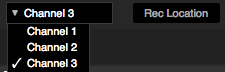
- Set the record source in Serato DJ to "Channel 3".
- Test that your record levels aren't clipping (you can use the Gain knob to adjust this level).
- When you are ready, press the red Record icon in Serato DJ, and start your mix.
- When you are finished, type a file name (i.e."mixtape 1") into the Filename box and press the Save icon. Remember to enter a filename, otherwise your recording will be lost if you press 'Record' again before saving.
- Recordings are saved in:
- “MyDocuments\My- Music\_Serato_\Recording” (on a PC)
- "~/Music/_Serato_/Recording Temp” (on a Mac)
- "In your 'Recorded' crate in Serato DJ crates"
Comment actions


