Have a feature request or suggestion? Post your idea here!

Post

2 followers Follow
0
Avatar

wrong song titles in rekordbox

Hello! I come with my problem.

I will present it on the example of Martin garrix's track - animal

So when I buy this track the original mix appears in the name when it is in fact extended, so I change its name to Martin Garrix - Animals (Extended Mix)

I add to rekordbox and it still shows Original Mix instead of changed to Extended, I don't want to rename every song in Windows preferences because I have 2,000 songs and it will take forever, is there another way?


Thank you in advance <3 

Eryk Tajs Answered

Official comment

Avatar

Eryk,

It sounds like whoever assembled that file didn't put the title as:

Animals (Extended Mix)

...but instead has it as two separate fields, TITLE is set as:

Animals

...and the MIX NAME is set as:

Extended Mix

Here you can see an example of this with the mix not being part of the title field:
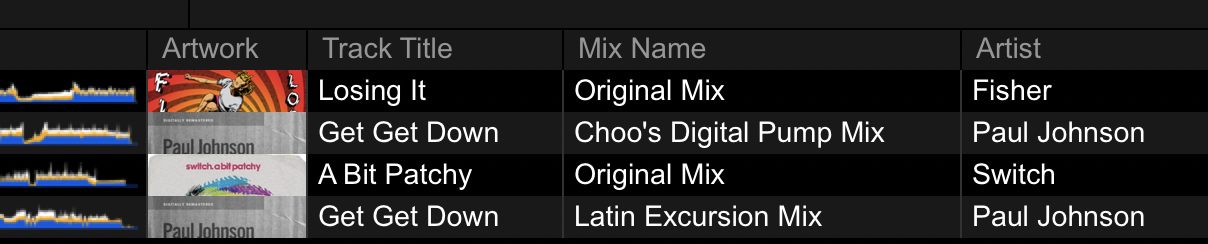
If this is the case with your songs and you'd prefer to have the mix name as part of the title field, I would suggest you use a tag editor to merge the two fields automatically, then refresh the tags in rekordbox.

For Mac, I highly recommend Yate, for PC, Tag & Rename.

Pulse
Comment actions Permalink

Post is closed for comments.

8 comments

0
Avatar
thank you, I already have this program, but how to do it in it? I will be very grateful for the tip!


Eryk Tajs 0 votes
Comment actions Permalink
0
Avatar

Just got that re-downloaded to my PC; will get you step-by-step info shortly.

Pulse 0 votes
Comment actions Permalink
0
Avatar

So it's been a while since I've used Tag&Rename, but it seems that it can't merge fields, so I found another app capable of doing it - Audio Ranger (and it's free).

Here's what you need to do:

  1. Download and install Audio Ranger.
  2. Open the application and drag in your Music folder containing the songs you want to modify - the parent folder is fine, all sub-folders and their contents will be editable.
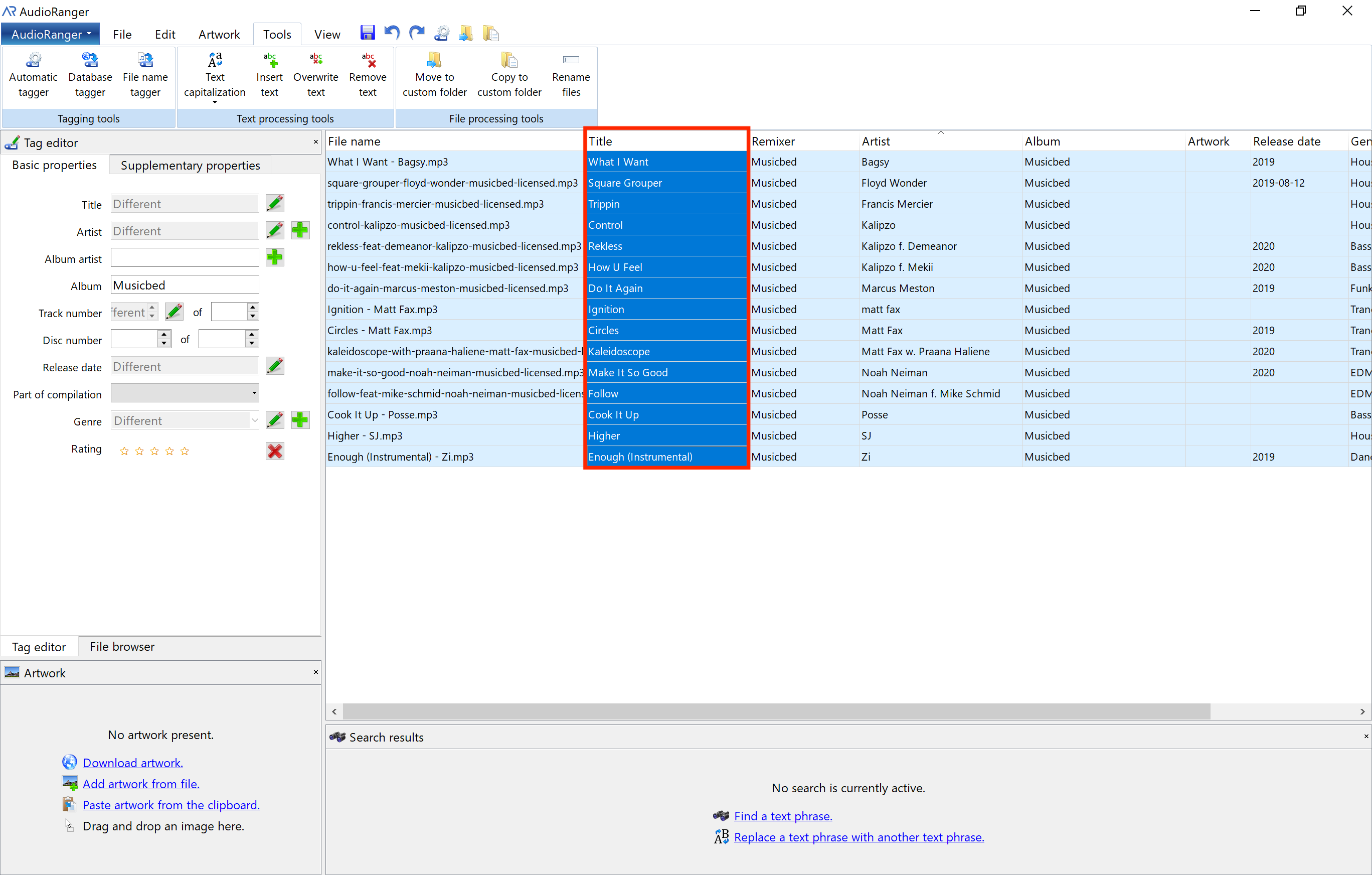
  3. Click on the Title field of the first track, and then scroll to the bottom and SHIFT+CLICK on the Title field of the last track; you'll see a dark blue column like this:


    If you have any songs in the collection that you DO NOT want to change, because they may already have the correct tag, simply CTRL+click them to de-select them from the group.
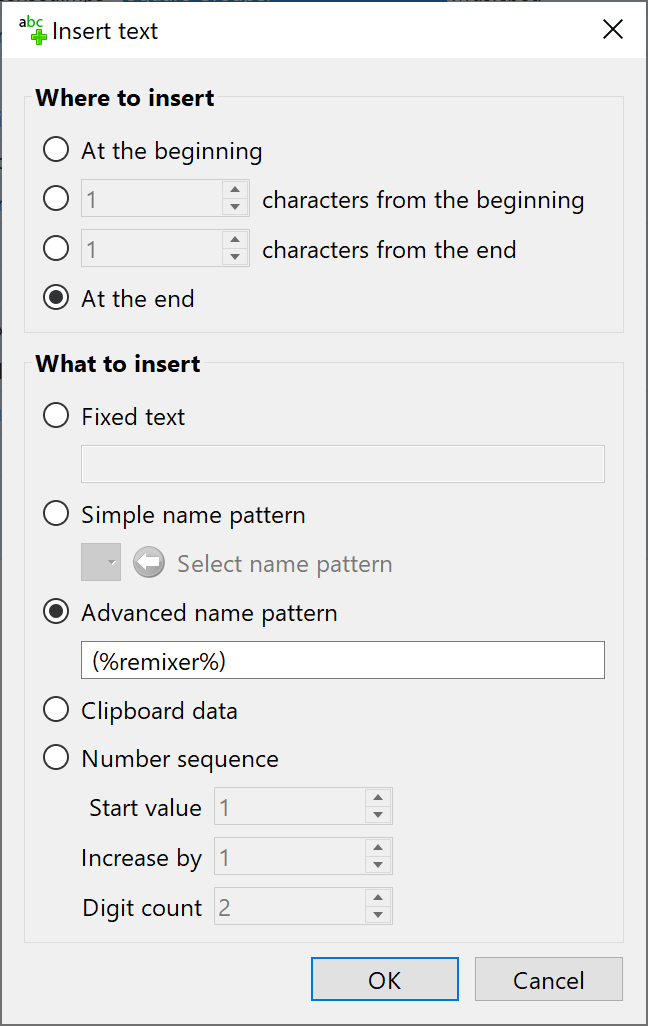
  4. Next, click Tools > Insert Text and a window will pop-up. Under Where to insert, select At the end. Under What to insert, select the Advanced option and put the contents as shown:


    That's a space, then the left parenthesis %remixer% right parenthesis. Click OK.
  5. You'll see the song title field will now have the remixer tag added to the end; in my case, I actually just used the album name as a dummy since I don't have songs using the remixer field:


    And the last thing to do is click the SAVE icon at the top to write the tag to the files.
  6. Finally, open rekordbox, click into your collection, select all (CTRL+A), then right-click and select Reload tags and you'll see the remix name appear to the right of the song title for all those songs.
Pulse 0 votes
Comment actions Permalink